Table of Contents
Introduction hp laptop computer keyboard not working Problem
Few things wreck your day like an HP laptop keyboard that quits mid-task. You type on, then keys freeze, and you’re left hanging. This guide fixes HP keyboard issues directly, from easy software changes to hardware tests. It covers quick solutions, driver updates, BIOS tweaks, and FAQs to restore your keys fast.
Step1: Initial Triage – The Quick Fixes for Non-Responsive Keys
Start here when your HP keyboard acts up. These steps take minutes and often solve the issue without tools. They target common glitches that make keys feel unresponsive.
Checking for Dirt Buildup and Sticky Keys
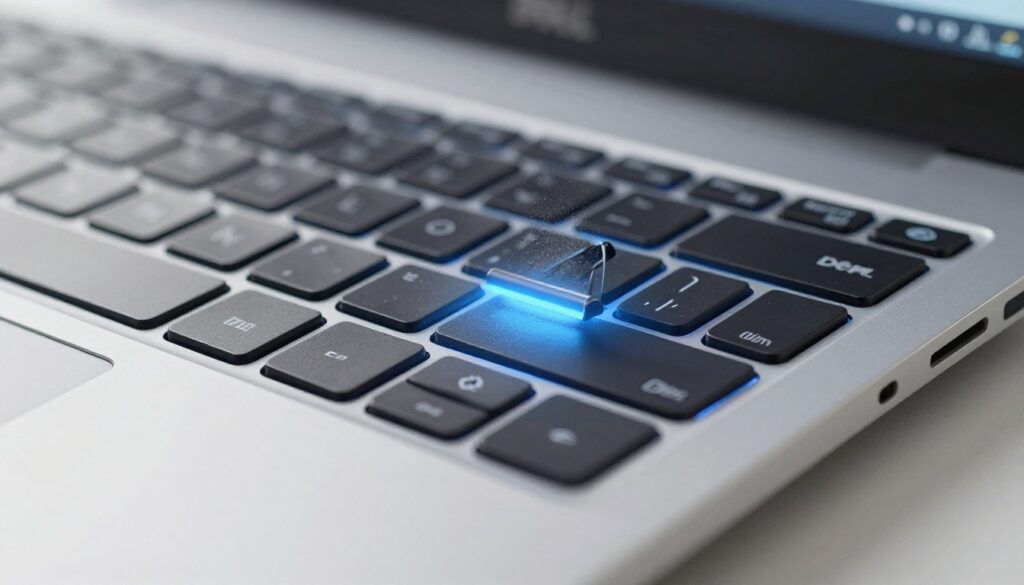
Dirt or spills often jam keys on HP laptops. Crumbs hide along edges and block key presses. Use compressed air to blast out junk. Keep the can straight up with quick puffs. For sticky spots, wipe with a microfiber cloth wet with rubbing alcohol. Let it dry all the way before you try keys. This fix brings back stuck keys on Pavilion or Envy models.
Rebooting and Battery Check
A fast reboot fixes short-term keyboard bugs on HP laptops. Hit the power button to turn off, wait 30 seconds, then start up again. The reset refreshes drivers and clears hung tasks. Low power can spark keyboard woes too, since save modes drop inputs. Plug in the charger and get to 20% battery before tests. This solves odd lockups on Specter or Omen machines.
Testing with an External Keyboard
Plug in a USB keyboard to your HP laptop now. If it types fine, your built-in keyboard likely has a hardware or driver problem. But if the external one fails too, check the OS or deeper system settings. This test pinpoints if the issue stays local to the internal keys. Borrow a cheap USB model from a friend if you lack one. It saves time and narrows down HP keyboard troubleshooting steps right away.
Step2: Software Solutions – Driver Updates and System Configuration Checks
Software bugs cause many HP laptop keyboard not working cases. Windows updates or bad installs can mess with input drivers. Dive into these fixes to restore smooth typing without opening the case.
Updating or Reinstalling Keyboard Drivers via Device Manager
Open Device Manager first—right-click the Start button and select it. Expand the “Keyboards” section to find your HP device. Right-click it and choose “Update driver” to search for fresh software. If no luck, pick “Uninstall device,” then restart your laptop. Windows reinstalls the driver automatically on boot. For HP keyboard driver update, visit HP’s site and download the latest for your model, like the EliteBook series. This often resolves lag or missing key responses.
Disabling Filter Keys and Other Accessibility Features
Windows accessibility options sometimes lock out normal typing. Filter Keys ignores brief or repeated presses, mimicking a broken keyboard. Head to Settings > Ease of Access > Keyboard, and toggle off Filter Keys, Sticky Keys, and Toggle Keys. Test your HP laptop right after. These settings activate by accident during frantic typing sessions. Disabling them brings back full control, especially on touch-sensitive HP keys.
Checking for Conflicting Background Software
Third-party apps can grab keyboard input and block your HP device. Gaming tools or overlay software often cause this clash. Boot into Safe Mode by holding Shift during restart, then check if keys work. If they do, a program is the culprit—uninstall recent downloads one by one. Tools like Discord overlays or RGB keyboard apps frequently interfere. This step isolates software conflicts in your HP keyboard troubleshooting routine.
Step3: BIOS/UEFI Level Troubleshooting for Persistent Failures
When software fixes fail, check the BIOS on your HP laptop. This low-level menu loads before Windows and tests hardware basics. Access it carefully to see if keyboard issues run deeper.
Accessing and Navigating the BIOS/UEFI Setup
Power off your HP laptop completely. Press the power button and tap F10 repeatedly to enter BIOS—some models use Esc first. The screen shows setup options; use arrow keys to move. If your keyboard responds here, the problem sits in the OS. No response means hardware trouble ahead. Common for HP like the ProBook line, this entry varies slightly by model year.
Checking for Keyboard Status within BIOS Settings
Look under the Advanced or Device Configuration tab in BIOS. Seek options for internal keyboard enablement or legacy support. Toggle any disabled settings and save changes with F10. Test typing in the BIOS fields—if it works, exit and boot normally. Failure here signals a connection or chip issue. This check rules out software entirely during HP keyboard troubleshooting.
Performing a BIOS/Firmware Update (Caution Required)
Outdated BIOS can cause input failures on HP laptops. Download the latest from HP’s support page using your model number. Install via HP Support Assistant app or a USB drive. Never interrupt power during the flash— it risks bricking your device. Back up data first and follow on-screen prompts closely. Users report this fixes intermittent key drops on newer 2025 models.
Step4: Advanced Hardware Diagnosis and Repair Indicators
Hardware problems need caution; don’t force fixes if unsure. These steps spot if your HP keyboard needs pro help. Focus on signs like partial failures or total blackouts.
Identifying Specific Key Failures vs. Total Keyboard Failure
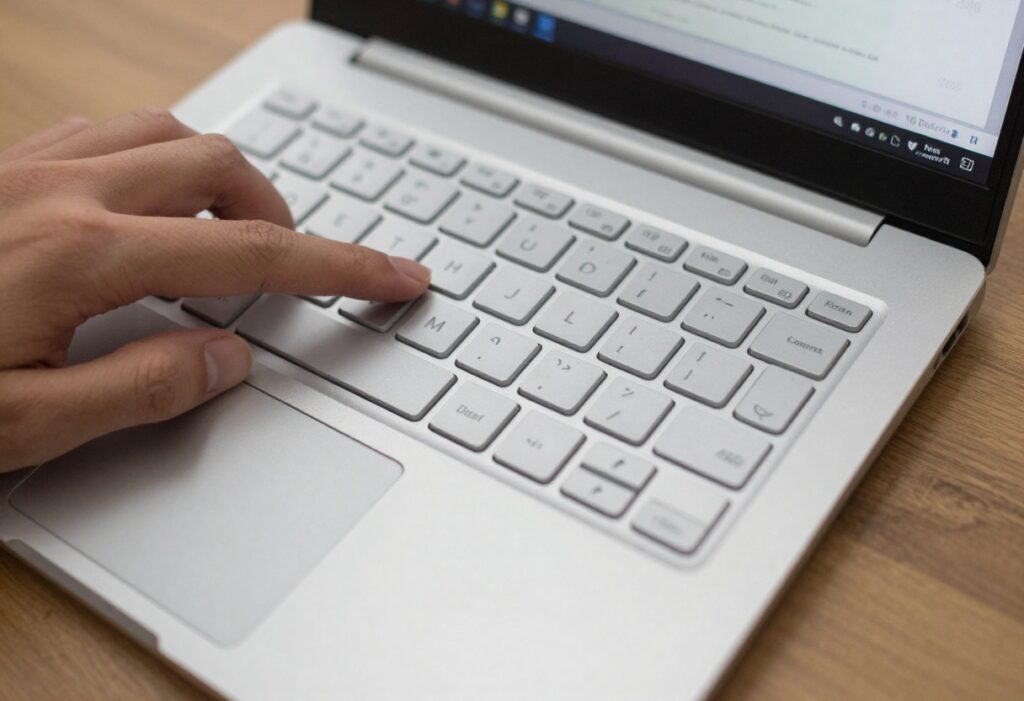
A few dead keys point to dirt or wear in that spot. The whole row or board failing suggests cable or mainboard faults. Press each key systematically and note patterns. Localized issues happen from spills; full failures from drops. On HP Envy models, membrane layers degrade over time. Map out bad spots to guide your next moves.
Checking the Keyboard Ribbon Cable Connection (For Advanced Users)
A flat ribbon cable connects the keyboard to your HP laptop’s motherboard. Drops can loosen it and block all input. Unscrew the bottom panel—see your model’s iFixit guide. Unplug then replug the cable to seat it right. Turn on the laptop and test. Tech-savvy users can try this fix, but it risks your warranty if you mess up.
When to Contact HP Support or Seek Professional Repair
Quit troubleshooting when keys fail in BIOS or after driver reinstalls. Ongoing issues call for hardware swaps. Check warranty status on HP’s website—free repairs if covered. Dial support at 1-800-HP-INVENT or find a certified shop. Out of warranty? Local fixes run $100-300 for keyboard changes. Act now; downtime costs stack up fast.
FAQ: Common Hp Laptop Computer Keyboard Not Working Problem
HP laptop keyboard quit on you? This FAQ tackles top issues. Short fixes point you forward.
HP Keyboard Fine Yesterday, Dead Today. What’s Wrong?
Windows updates often mess with drivers suddenly. New apps can clash too. Restore system to yesterday through Settings > Update & Security > Recovery. Spilled something? Clean it up like before. March 2026 patches hit lots of HP users hard.
Reset Keyboard to Defaults on Windows 10 or 11?
Open Settings > Time & Language > Language. Select input method. Hit Advanced keyboard settings. Set layouts back to default. For a full wipe, search “Reset this PC” and keep files. Clears weird changes on HP keys. Test it in Notepad.
Bluetooth Keyboard Okay Long-Term if Built-In One Dies?
Yes. Pair it up in Settings > Devices > Bluetooth. Solid fix for HP laptops forever. Battery runs days. Setup in seconds. Check your model most from 2020 work fine. Skip messy USB cables.
Conclusion: Regaining Control Over Your HP Input Device
You’ve got the tools now to fix most HP laptop keyboard not working woes. Start with quick cleans and restarts, then move to drivers and BIOS checks. Systematic steps isolate the cause, saving time and frustration. If all else fails, lean on HP support for pro eyes. Grab that external keyboard as a backup and get typing again—your productivity awaits. For more tech tips, check our guides on laptop maintenance.
hp laptop computer keyboard not working hp laptop computer keyboard not working hp laptop computer keyboard not working hp laptop computer keyboard not working hp laptop computer keyboard not working hp laptop computer keyboard not working hp laptop computer keyboard not working hp laptop computer keyboard not working hp laptop computer keyboard not working hp laptop computer keyboard not working hp laptop computer keyboard not working hp laptop computer keyboard not working hp laptop computer keyboard not working
hp laptop computer keyboard not working hp laptop computer keyboard not working hp laptop computer keyboard not working hp laptop computer keyboard not working hp laptop computer keyboard not working hp laptop computer keyboard not working hp laptop computer keyboard not working hp laptop computer keyboard not working hp laptop computer keyboard not working hp laptop computer keyboard not working hp laptop computer keyboard not working hp laptop computer keyboard not working