Table of Contents
Introduction in Dell Laptop Blue Screen of Death (BSOD) Problem
A blue screen flashes on your Dell laptop just as you’re deep in work. It freezes everything and demands a restart. Called the Blue Screen of Death, or BSOD, it signals a big Windows error the system can’t handle alone.
Panic hits when files go missing or deadlines press close. BSODs come from driver faults, faulty hardware, or software bugs. This guide shows you how to find and fix blue screen errors on Dell laptops. Simple steps get you running smooth again soon.
Section 1: Initial Triage and Data Gathering for Dell BSOD Errors
Start here when the screen turns blue. Quick checks help pinpoint the cause without deep dives. This saves time and prevents wrong fixes.
Identifying the Stop Code and Error Message
Look at the blue screen right away. It shows a stop code like DRIVER_IRQL_NOT_LESS_OR_EQUAL or CRITICAL_PROCESS_DIED. These codes tell what went wrong, such as a bad driver or failed process.
Snap a photo with your phone. The screen vanishes on restart, so notes fade fast. Search the code online later for clues on Dell models.
Common codes on Dells include MEMORY_MANAGEMENT for RAM faults. Write it down exact. This step guides all next moves.
Checking System Logs via Event Viewer
Boot up after the crash. Press Windows key and type Event Viewer. Open it to see logs under Windows Logs, then Application and System.
Find errors timed near the BSOD. Look for red icons with details like faulting modules. This adds context beyond the stop code, like which app triggered it.
Filter by Critical or Error levels. Export the log if needed for Dell support. Logs reveal patterns in Dell BSOD fixes.
Basic System Health Checks (Power and Peripherals)
Unplug all extras first. Remove USB drives, printers, and docks. Faulty ones can spark conflicts leading to blue screens.
Check your Dell power adapter. Use only the original; fakes cause voltage dips. Test with another outlet too.
Run the laptop on battery alone. If BSOD stops, the charger might fail. These simple tests rule out easy hardware hits on Dell systems.
Section 2: Software Conflicts and Driver Resolution
Drivers and apps clash often on Dells. Updates can break things. Fix these before hardware hunts.
Updating Critical Dell Drivers Directly from Support Assist or Dell Website
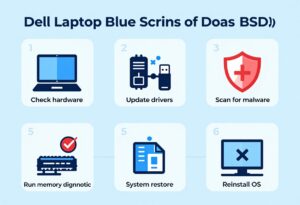
Download Support Assist from Dell’s site. It scans your model and grabs the right drivers. Focus on BIOS, chipset, and graphics ones first.
Go to support.dell.com if no app. Enter your service tag from the bottom sticker. Pick the latest stable versions, not betas.
Install one by one, then restart. This tackles many Dell laptop blue screen of death cases from old drivers. Windows Update misses Dell specifics sometimes.
Rolling Back Recent Driver Changes
Open Device Manager with Windows key plus X. Right-click the device, like your graphics card, and pick Properties.
Go to Driver tab. Hit Roll Back Driver if an update just happened. Confirm and reboot.
Boot into Safe Mode if normal mode crashes. Press F8 or Shift plus Restart from login. Roll back there to undo bad changes causing BSOD.
Scanning for Malware and System File Corruption (SFC and DISM)
Open Command Prompt as admin. Type sfc /scannow and press Enter. It scans and fixes corrupt Windows files.
If that fails, run DISM /Online /Cleanup-Image /Restore Health. This repairs the system image first. Follow with SFC again.
Malware hides in files too. Use Windows Defender full scan after. These tools fix software rot behind Dell BSOD errors.
Section 3: Memory and Storage Diagnostics
Hardware fails quietly on laptops. RAM or drives corrupt data, leading to crashes. Test them next.
Running the Dell Built-in Diagnostics (ePSA or Dell Support Assist Pre-boot Assessment)
Restart and tap F12 at the Dell logo. Select Diagnostics from the boot menu. The ePSA tool runs quick tests.
Choose Memory Test. It checks for errors in RAM sticks. Run the full version; it takes 10-30 minutes.
Test the hard drive too. Look for SSD or HDD issues. Failures here explain stop codes like IRQL_NOT_LESS_OR_EQUAL on Dells.
Utilizing the Windows Memory Diagnostic Tool
Search for Windows Memory Diagnostic in the start menu. Pick Restart now to check for problems. The tool runs before Windows loads.
It tests all RAM at once. Reboot again to see results in Event Viewer. Errors mean a bad stick.
If you have two RAM modules, remove one and test. Swap and repeat. This isolates the faulty part in Dell laptops.
Checking Hard Drive/SSD Health Status (CHKDSK)
Run Command Prompt as admin. Type chkdsk C: /f /r and hit Enter. Schedule it for next restart if the drive is in use.
The /f fixes file errors. /r finds bad sectors and recovers data. It can take hours on big drives.
Watch for reallocations in the report. High numbers signal drive death. Back up data soon if issues show on your Dell.
Section 4: Advanced Troubleshooting and System Restoration
Basic steps miss some roots. Go deeper now. Restore or tweak settings carefully.
System Restore to a Previous Working State
Search for Create a restore point. Click System Restore in the window. Pick a point before the BSOD started.
Follow prompts to revert. It undoes app installs and driver changes. Your files stay safe.
Test after restore. If BSOD returns, pick an earlier point. This rolls back Dell software conflicts without data loss.
Performing a Clean Boot to Isolate Third-Party Services
Type msconfig in search. Go to Services tab. Check Hide all Microsoft services, then Disable all.
Hit Startup tab and open Task Manager. Disable items there too. Apply and restart.
Use the system normally. If no crash, enable services one by one. This finds the bad app causing Dell laptop BSOD.
BIOS/UEFI Update and Configuration Check
Boot to BIOS with F2 at startup. Note the version number. Check Dell’s site for updates matching your model.
Download and flash the BIOS file. Follow Dell’s exact steps; wrong ones brick the board. Updates fix power or compatibility bugs.
Reset BIOS to defaults if needed. Save and exit. This resolves hidden hardware ties to blue screens.
Section 5: The Last Resort: Clean Reinstallation or Professional Service
Some fixes demand big changes. Or call pros. Know when to stop DIY.
Reinstalling Windows Using Dell Recovery Media or USB
Back up everything first to external drive or cloud. Get a Windows USB from Microsoft’s tool. Or order Dell recovery media.
Boot from USB with F12. Choose custom install to wipe and reinstall. Follow setup for fresh start.
Use Dell’s OS Recovery if available. It restores factory state. Test for BSOD after; it clears deep software woes.
When to Contact Dell Support or a Certified Technician
If diagnostics fail repeatedly, hardware likely broke. Like bad motherboard or GPU. Dell support checks warranty via service tag.
Call if under warranty; they fix free. Else, take to a tech for part swaps. Continuous crashes after software fixes mean pro help.
Signs include odd noises or heat. Don’t risk more damage. Pros handle Dell-specific parts best.
Conclusion: Maintaining a Stable Dell Environment
You now know paths from drivers to hardware for Dell BSOD fixes. Start with codes and logs, then software scans. Move to tests if needed and restore last.
Keep drivers fresh via Support Assist. Run monthly checks with CHKDSK and memory tools. Back up weekly to avoid data scares.
Dust your vents often, heat sparks crashes. With these habits, your Dell laptop stays crash-free. Tackle issues early for smooth runs.
Dell Laptop Blue Screen of Death (BSOD) Dell Laptop Blue Screen of Death (BSOD) Dell Laptop Blue Screen of Death (BSOD) Dell Laptop Blue Screen of Death (BSOD) Dell Laptop Blue Screen of Death (BSOD) Dell Laptop Blue Screen of Death (BSOD) Dell Laptop Blue Screen of Death (BSOD) Dell Laptop Blue Screen of Death (BSOD) Dell Laptop Blue Screen of Death (BSOD) Dell Laptop Blue Screen of Death (BSOD) Dell Laptop Blue Screen of Death (BSOD)
Dell Laptop Blue Screen of Death (BSOD) Dell Laptop Blue Screen of Death (BSOD) Dell Laptop Blue Screen of Death (BSOD) Dell Laptop Blue Screen of Death (BSOD) Dell Laptop Blue Screen of Death (BSOD) Dell Laptop Blue Screen of Death (BSOD) Dell Laptop Blue Screen of Death (BSOD) Dell Laptop Blue Screen of Death (BSOD) Dell Laptop Blue Screen of Death (BSOD) Dell Laptop Blue Screen of Death (BSOD) Dell Laptop Blue Screen of Death (BSOD)