Table of Contents
Introduction in Windows 10 Not Updating Problem
Windows 10 updates can wreck a good day fast. You tap check for updates, and it freezes at 0% or spits out odd error codes. These patches guard your PC from risks and bring fresh features, but flops leave your system outdated. This guide shows fixes for Windows 10 update issues, from fast checks to deep fixes. Updates will run smooth without the pain.
Section 1: Diagnosing the Root Causes of Windows 10 Update Failures
Update issues in Windows 10 often hide deeper problems. They block security fixes and new features. Let’s break down why your system refuses to update.
Common Error Codes and Meanings
Update errors bring surprise codes like rude visitors. Code 0x80070002 says a key file is missing. It flags lost or broken files from old downloads.
Code 0x800F0922 warns of low disk space or faulty parts. It freezes the whole update. Folks hit it after full drives or failed setups.
Code 0x80070422 points to a service issue. Windows Update won’t start as it should. Scan Event Viewer logs for hints on these codes. They show the best fix route.
System Integrity Checks: Pending Files and Corrupted Components
Old update files can clog the works. They sit as “pending” and block fresh tries. Run a disk check to spot bad sectors that corrupt files.
Tools like CHKDSK scan your drive for errors. Type it in Command Prompt as admin. Fix any issues found to clear the path.
Corrupt system files break update chains. SFC spots these breaks. DISM goes deeper to mend them. Healthy files mean smooth updates.
Interference from Third-Party Software
Antivirus programs guard your PC but sometimes overdo it. They scan update files and slow downloads to a crawl. Turn them off during updates to test.
Outdated drivers clash with new patches. Graphics or network drivers often cause trouble. Update them via Device Manager or maker sites.
VPNs route traffic funny, blocking Microsoft servers. Disconnect and retry updates. Firewalls in other apps might filter connections too. Spot these blocks by testing in safe mode.
Section 2: Essential First Steps: Quick Fixes and System Resets
Start simple before you dig deep. These steps reset basics without much risk. They fix most Windows 10 update failures fast.
Utilizing the Built-in Windows Update Troubleshooter
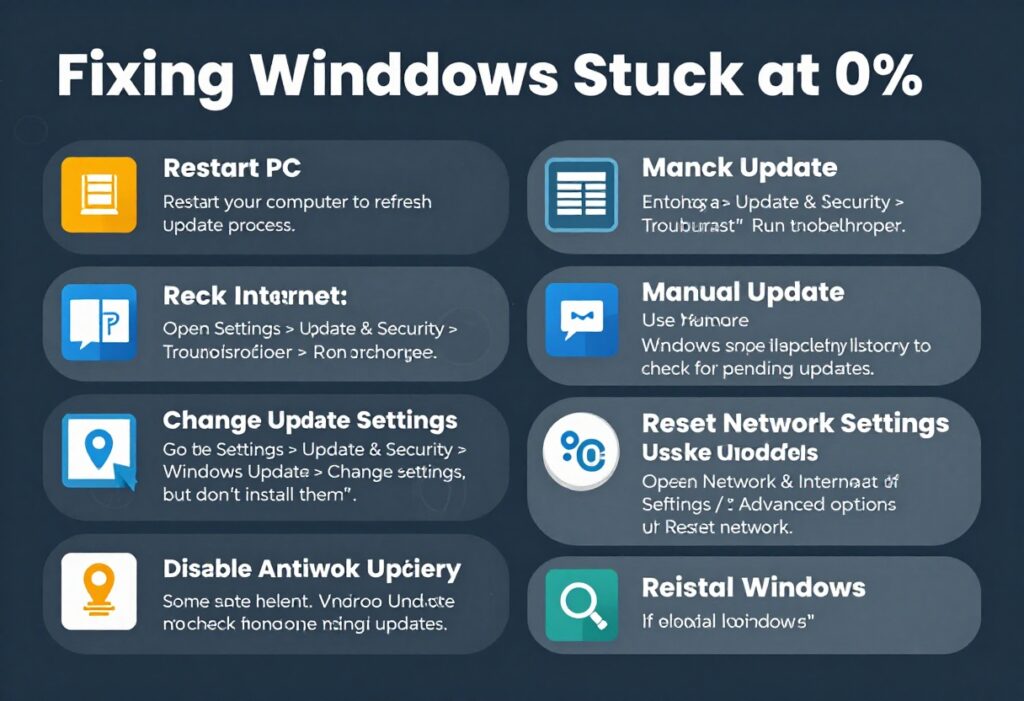
Windows has a tool just for this. It scans and fixes update snags auto. Open Settings, go to Update & Security, then Troubleshoot.
Click Additional troubleshooters. Pick Windows Update and hit Run. Let it detect issues like service stops or cache jams. Restart after it finishes. Many users see success here.
The tool resets key parts quietly. It might rename folders or restart services. Run it weekly if updates act up often.
Clearing the Windows Update Cache Manually
Cached files get old and corrupt. Clear them to start fresh. Press Win + R, type services.msc, and Enter.
Find Windows Update service. Right-click, stop it. Do the same for BITS service.
Open File Explorer. Navigate to C:\Windows\SoftwareDistribution. Delete all inside this folder. No worries, it rebuilds on next check.
Restart the services. Set them to Automatic in properties. Now run Windows Update again. Downloads flow clean.
Verifying Date, Time, and Region Settings
Wrong time breaks secure links to servers. Updates use SSL checks that fail on bad clocks. Right-click taskbar clock, pick Adjust date/time.
Turn on Set time automatically. Sync now if needed. Match your region in Settings too.
Bad settings mimic network errors. Fix them, and connections stabilize. Test an update right after.
Section 3: Deep Dive: Restoring Essential Update Services and Components
Services power the update engine. If they falter, nothing moves. Restore them to get back on track.
Restoring Critical Windows Update Services Status
Check services first. Press Win + R, enter services.msc. Scroll to Windows Update.
Double-click it. Startup type should be Automatic. If not, set it and apply.
Status must say Running. Start it if stopped. Repeat for BITS and Cryptographic Services.
These three work together. BITS handles downloads. Crypto verifies files. All running means updates proceed.
Running System File Checker (SFC) and DISM Scans
Command Prompt fixes core files. Run as admin. Type DISM /Online /Cleanup-Image /CheckHealth first.
It checks for damage quick. If issues, run DISM /Online /Cleanup-Image /ScanHealth. This scans deeper.
For repairs, use DISM /Online /Cleanup-Image /RestoreHealth. It pulls clean files from Windows. Then run sfc /scannow.
SFC mends what it finds. Restart after both. Updates often work post-scan. Stats show 70% of corrupt file issues resolve this way.
Adjusting Firewall and Proxy Settings for Update Access
Firewalls block ports updates need. Go to Windows Defender Firewall in Control Panel. Turn off for private networks temp.
Test updates with it down. If it works, add rules for Windows Update. Ports 80 and 443 must stay open.
Proxies hide your IP but snag Microsoft traffic. In Settings, Network & Internet, Proxy. Turn off auto-detect.
Manual proxies? Set to none. This clears paths to update servers. Re-enable security after success.
Section 4: Advanced Troubleshooting: Repairing the Installation Environment
Standard fixes flop sometimes. Go advanced to rebuild the base. These steps save your setup.
Using the Microsoft Update Catalog for Manual Downloads
Auto updates fail? Grab files by hand. First, note the KB number from error details.
Visit catalog.update.microsoft.com. Search the KB. Pick your Windows version.
Download the .msu file. Double-click to install. Restart and check for more.
This skips the broken downloader. It’s great for one-off patches. Keep a list of missed KBs.
Performing an In-Place Upgrade (Repair Install)
Media Creation Tool refreshes Windows. Download from Microsoft site. Run it, pick Upgrade this PC now.
Keep files and apps checked. It reinstalls fresh over old. Process takes 30-60 minutes.
This fixes deep corruptions. Your desktop stays the same. Updates flow easy after.
Checking Hard Drive Space Requirements
Updates need room to breathe. Aim for 20GB free on C: drive. Check in File Explorer, right-click This PC.
Delete temp files via Disk Cleanup. Run it from search. Select C: and clean system files too.
Low space causes 0x800F0922 errors. Free up, then retry. Monitor space monthly to avoid repeats.
Windows Not Update Issues for FAQs
Why do Windows updates refuse to install?
Low disk space or shaky internet causes failures. Free up room on your C: drive. Restart the PC and retry.
How can I unstick a Windows Update?
Head to Settings, then Update & Security. Pause the updates. Resume them. Launch the troubleshooter right there.
What’s behind Windows Update error 0x80070002?
It points to missing files. Wipe the SoftwareDistribution folder via services. Restart the Update service.
How to reset Windows Update parts?
In services.msc, stop the Update service. Rename folders such as Catroot2. Restart the service anew.
Does antivirus stop Windows updates?
Yes, certain antivirus programs get in the way. Disable it briefly. Install updates. Switch it back on.
Why do updates keep failing post-restart?
Outdated drivers conflict with updates. Refresh them in Device Manager. Look for hardware problems too.
Conclusion: Maintaining a Healthy, Updatable Windows 10 System
Windows 10 update failures stem from cache jams, service halts, or software clashes. Clear the cache, run DISM and SFC, and check services to fix most issues. Quick steps like the troubleshooter often do the trick first.
Stay ahead by updating drivers regular and freeing disk space. Disable extra antivirus before big patches. These habits keep your PC current and secure.
You can conquer these glitches now. Follow these steps and enjoy a stable system. Updates will install smooth, protecting your data.
Windows 10 Not Updating Problem Windows 10 Not Updating Problem Windows 10 Not Updating Problem Windows 10 Not Updating Problem Windows 10 Not Updating Problem Windows 10 Not Updating Problem Windows 10 Not Updating Problem Windows 10 Not Updating Problem Windows 10 Not Updating Problem Windows 10 Not Updating Problem Windows 10 Not Updating Problem Windows 10 Not Updating Problem Windows 10 Not Updating Problem Windows 10 Not Updating Problem Windows 10 Not Updating Problem Windows 10 Not Updating Problem Windows 10 Not Updating Problem
Windows 10 Not Updating Problem Windows 10 Not Updating Problem Windows 10 Not Updating Problem Windows 10 Not Updating Problem Windows 10 Not Updating Problem Windows 10 Not Updating Problem